
Symptom: The Smart D-Logger guide function does not work.
Cause: Adobe Acrobat Reader must be installed. The function does not work when Protected Mode is configured incorrectly.
Solution:
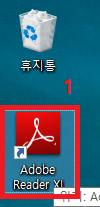
1. Double-click the Adobe Reader icon on the desktop to launch it. Alternatively, search for 'Adobe Reader' using Windows Search and launch it.
※Default path: C:\Program Files (x86)\Adobe\Reader 11.0\Reader\AcroRd32.exe
However, the path may vary depending on the customer’s PC environment and installation settings.
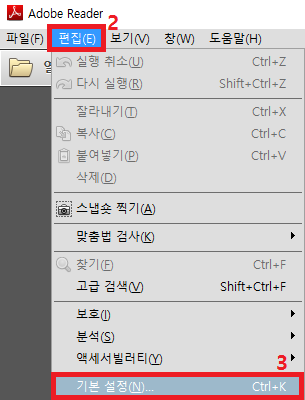
2. In Adobe Reader, click 'Edit' in the upper-left corner.
3. Click 'Preferences' under Edit.
※Default path: C:\Program Files (x86)\Adobe\Reader 11.0\Reader\AcroRd32.exe
However, the path may vary depending on the customer’s PC environment and installation settings.
2. In Adobe Reader, click 'Edit' in the upper-left corner.
3. Click 'Preferences' under Edit.
 or
or 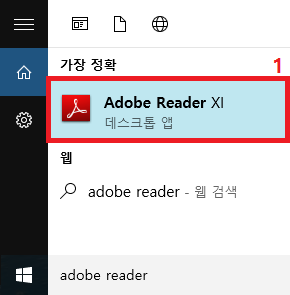
※For Adobe Reader 11※
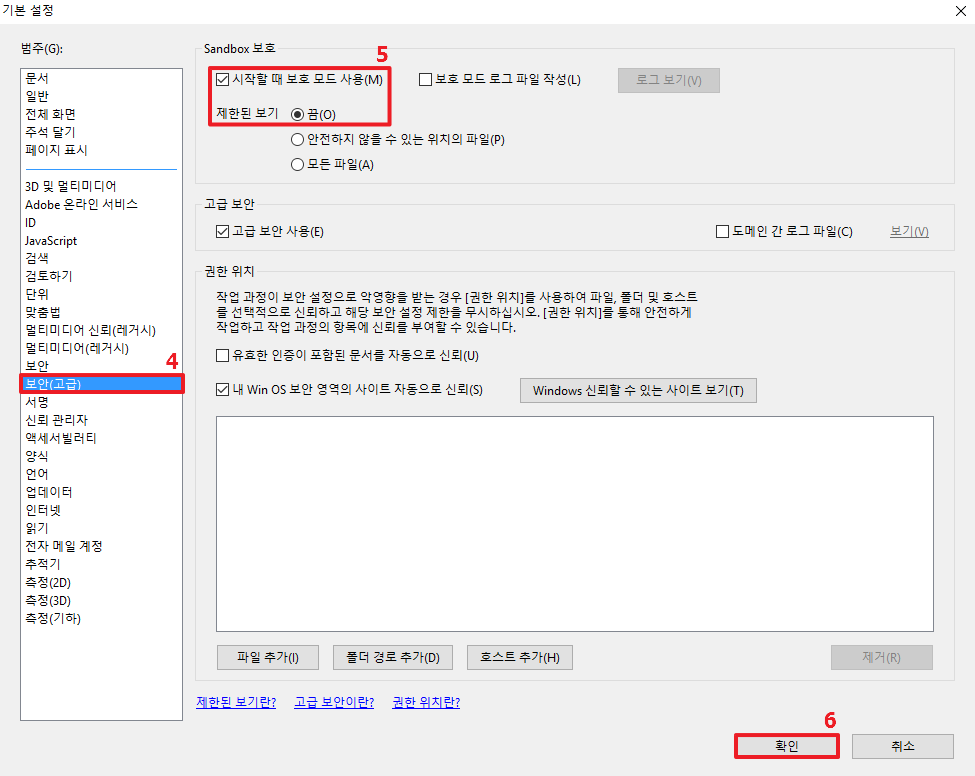
4. In the Preferences window, click 'Security (Enhanced)' in the Categories pane on the left.
5. Under Sandbox Protections, select 'Enable Protected Mode at startup', and then select 'Off' under Protected View.
6. Click OK, and then verify that the guide opens correctly in Smart D-Logger.
4. In the Preferences window, click 'Security (Enhanced)' in the Categories pane on the left.
5. Under Sandbox Protections, select 'Enable Protected Mode at startup', and then select 'Off' under Protected View.
6. Click OK, and then verify that the guide opens correctly in Smart D-Logger.
※For Adobe Reader 10※
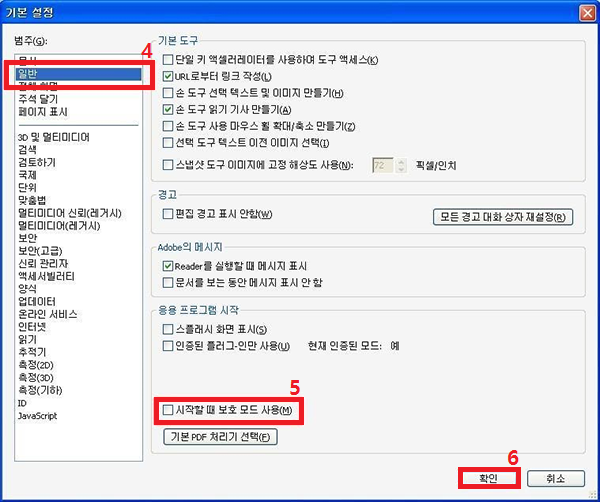
4. In the Preferences window, click 'General' in the Categories pane on the left.
5. Under Application Startup, clear 'Enable Protected Mode at startup'.
6. Click OK, and then verify that the guide opens correctly in Smart D-Logger.
4. In the Preferences window, click 'General' in the Categories pane on the left.
5. Under Application Startup, clear 'Enable Protected Mode at startup'.
6. Click OK, and then verify that the guide opens correctly in Smart D-Logger.
Comments
0 comments
Please sign in to leave a comment.